Presence Sensors
Connecting mmWave Sensors
Satellite1 supports mmWave radar sensors for detecting human presence in a room. This is useful when you want Sat1 to automate actions like turning on a light or starting a conversation when someone enters.
The Sat1 HAT has headers for directly mounting either the LD2410 or LD2450 mmWave human presence sensor. Direct mounting is typically best for in-ceiling installations because the sensor points in the same direction as the LEDs and microphones.
The latest Satellite1.1 HAT also includes an LD2450 connector on the underside of the board. This lets you mount the sensor in any orientation with a 4-pin JST-ZH cable.
-
LD2410 mmWave module
The LD2410 is a small but capable presence sensor. It detects both motion and still human presence up to 6 meters away, with a detection angle of +/-60 degrees. For best results, tune it after installation. It can also detect through materials like glass walls and thin plywood.
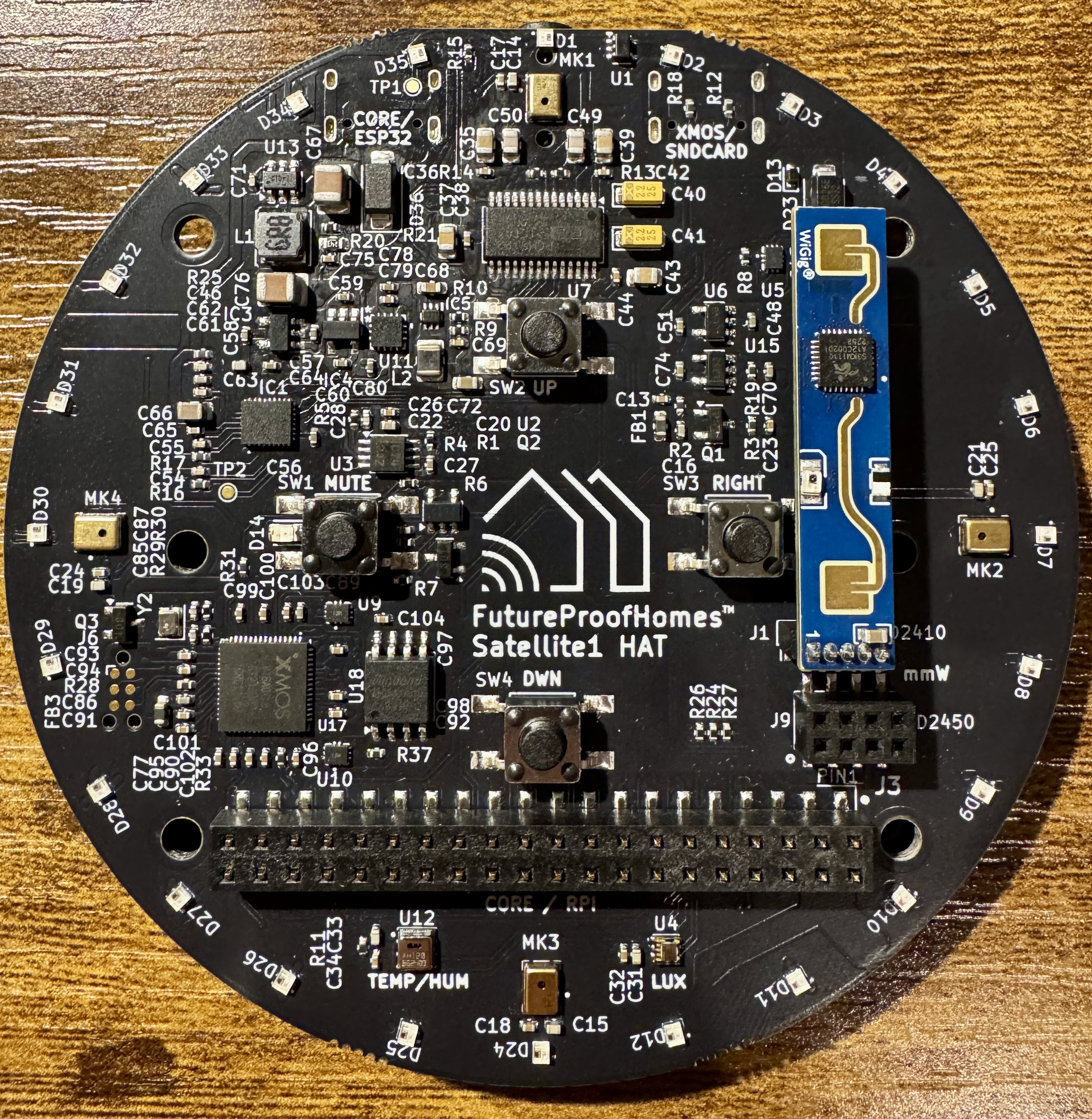
Original Sat1 with direct-mounted LD2410 The LD2410B includes Bluetooth for updating the radar firmware. The standard LD2410 does not include Bluetooth. Sat1 is compatible with both versions.
-
LD2450 mmWave module
The LD2450 is a more advanced presence sensor. It can track up to 3 moving occupants while also detecting still human presence up to 8 meters away. It has a detection angle of +/-60 degrees and can detect through materials like glass walls and thin plywood.
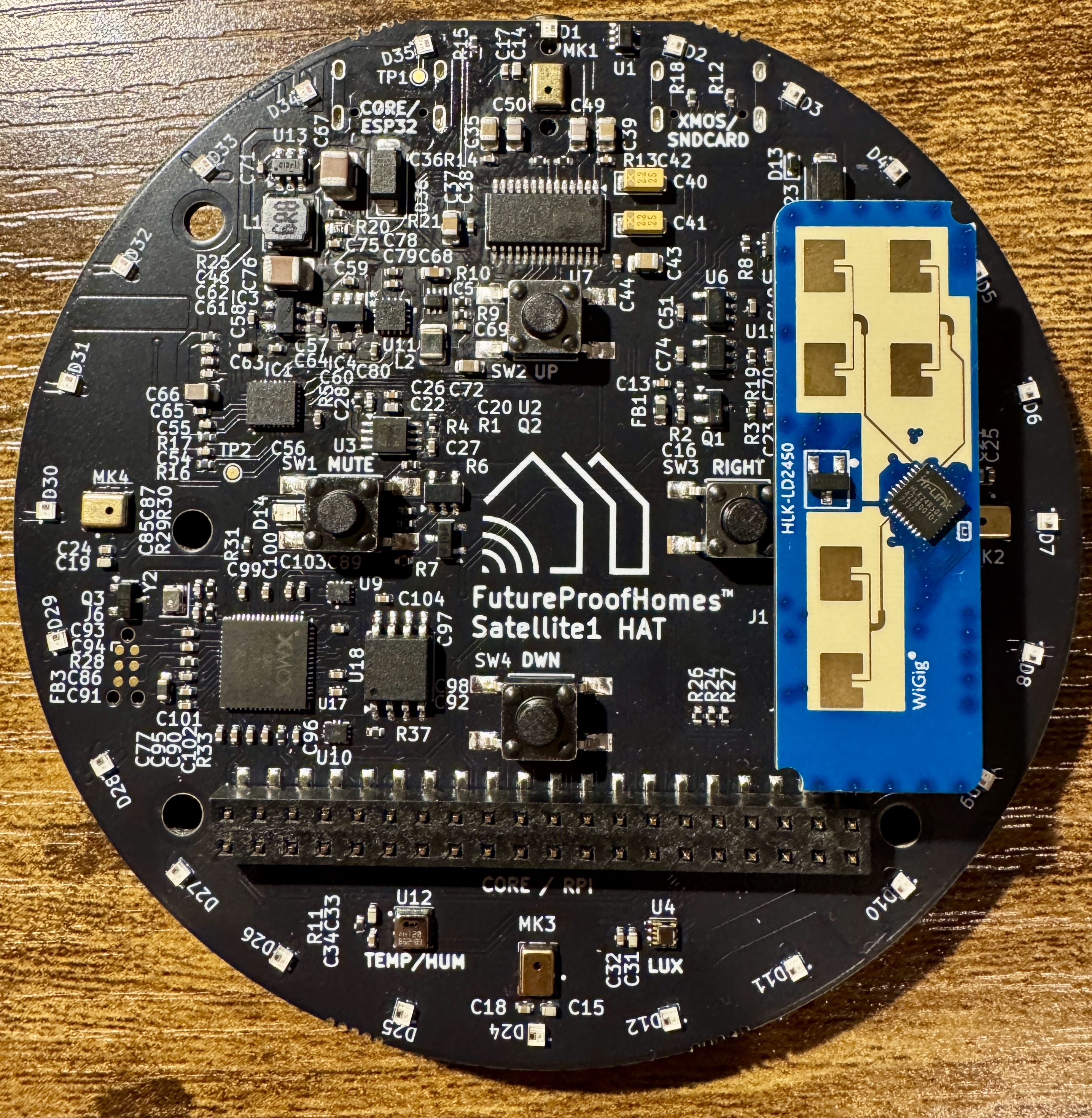
Original Sat1 with direct-mounted LD2450 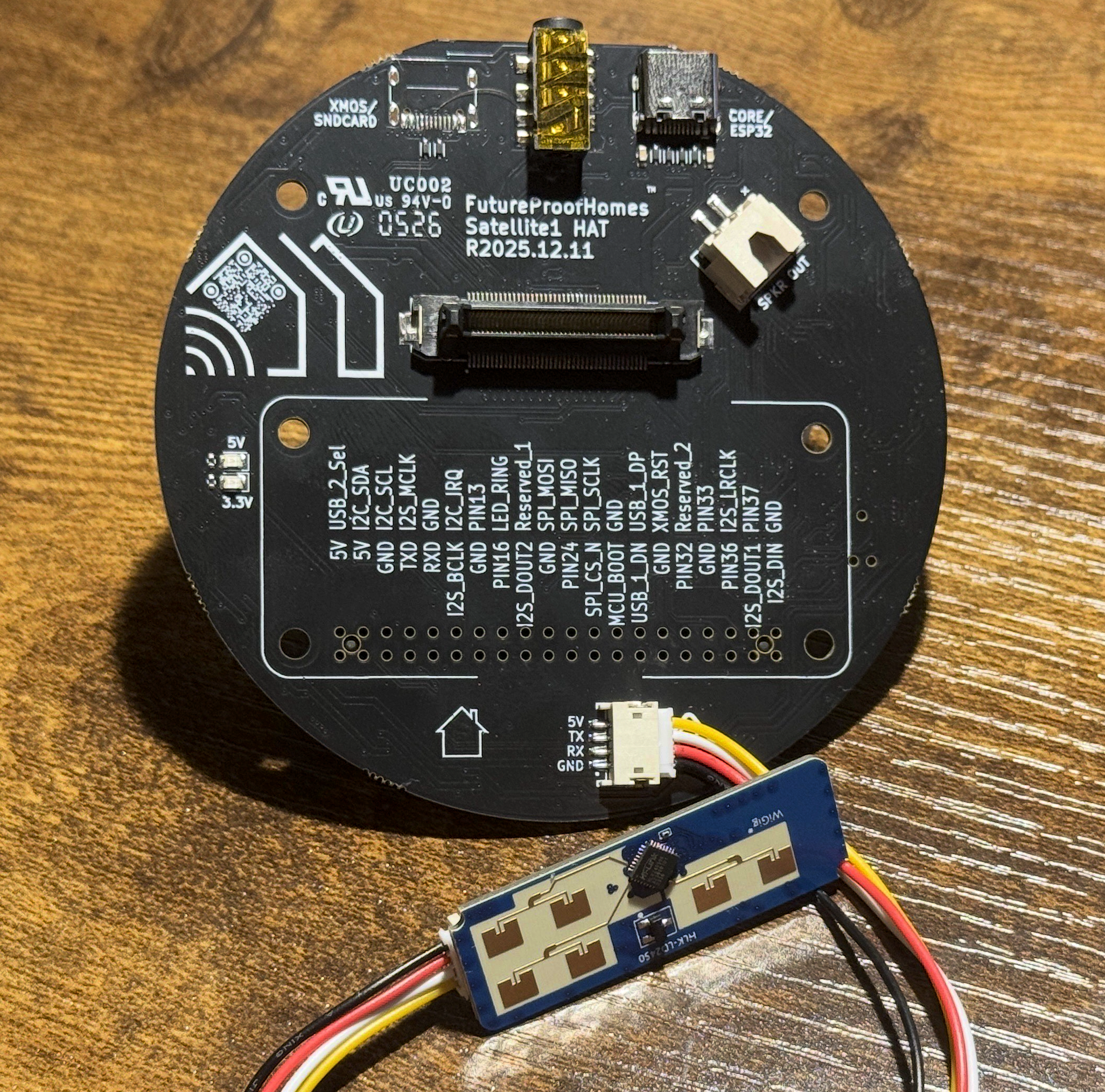
Latest Sat1.1 supports LD2450 connected with the 4-pin harness cable The LD2450 must be running firmware version greater than V2.02.23090617 to work with ESPHome. Learn how to update the firmware.
Not all enclosures support mmWave
Only some Satellite1 enclosures support mmWave sensors.
- Our new Sat1.1 Smart Speaker fits the LD2450 using a 4-pin cable.
- Our older DIY Cylindrical Enclosure fits both mmWave sensors when mounted directly to the HAT.
- In-ceiling enclosures are coming soon.
Understanding the LD2410
-
Gate: the LD2410 divides its detection range into distance bands called gates. Each gate can be tuned separately. Think of the gates like layers extending outward from the sensor. The LD2410 has 8 useful gates, plus gate 0, which is usually not helpful for tuning.
-
Distance Resolution: distance resolution controls the size of each gate. The LD2410 can use 75 cm or 20 cm per gate. At 75 cm per gate, the maximum range is
0.75 * 8 =6 meters. At 20 cm per gate, the maximum range is 1.6 meters, but tuning can be more precise. -
Energy: energy is the amount of detected activity in a gate. More movement usually creates a higher energy value.
Understanding the LD2450
-
Target Tracking: unlike the gate-based LD2410, the LD2450 tracks up to 3 individual targets at the same time using X/Y coordinates. Each target reports its position, distance, speed, and direction, giving you a real-time map of where occupants are in the room.
-
Zones: you can define up to 3 zones on the coordinate grid. When a target enters a zone, that zone's occupancy sensor turns on. You can also define an exclusion zone to ignore motion from areas like a ceiling fan or a window with moving curtains.
mmWave Setup
mmWave Sensors Are Automatically Detected
The latest firmware automatically detects if/which mmWave sensor is connected to your Sat1. To confirm detection, open your Sat1's Diagnostics section and scroll to the bottom to see which radar is listed.
Upgrading from v0.1.x mmWave firmware?
Your previous Sat1 mmWave automations may need updates because v0.2.0 exposes new radar entities in the Sat1 ESPHome UI.
Radar Tuner WebUI
The built-in Radar Tuner WebUI lets you visually calibrate your mmWave sensor from a web browser. You do not need Home Assistant dashboard cards or manual entity tuning.
-
Open Sat1 ESPHome Device UI
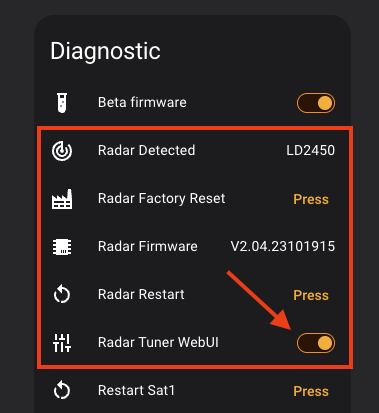 With a mmWave attached to your Satellite1, go to "Settings -> Devices & Services -> ESPHome" and find your Sat1 device.
Toggle on "Radar Tuner WebUI" within the "Diagnostics" section.
-
Open the Radar Tuner WebUI
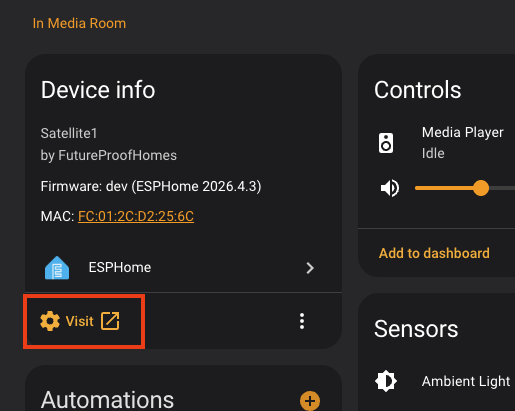 Open a web browser and navigate to your Sat1's IP address (for example,
 http://192.168.1.xxx), or click the Visit button in the Device Info section.
Tuning LD2450 Zones
The LD2450 tuner lets you draw up to 3 detection zones plus an exclusion zone on a visual radar map. Click the canvas to add points and define each zone boundary. This gives you precise control over where presence is detected.
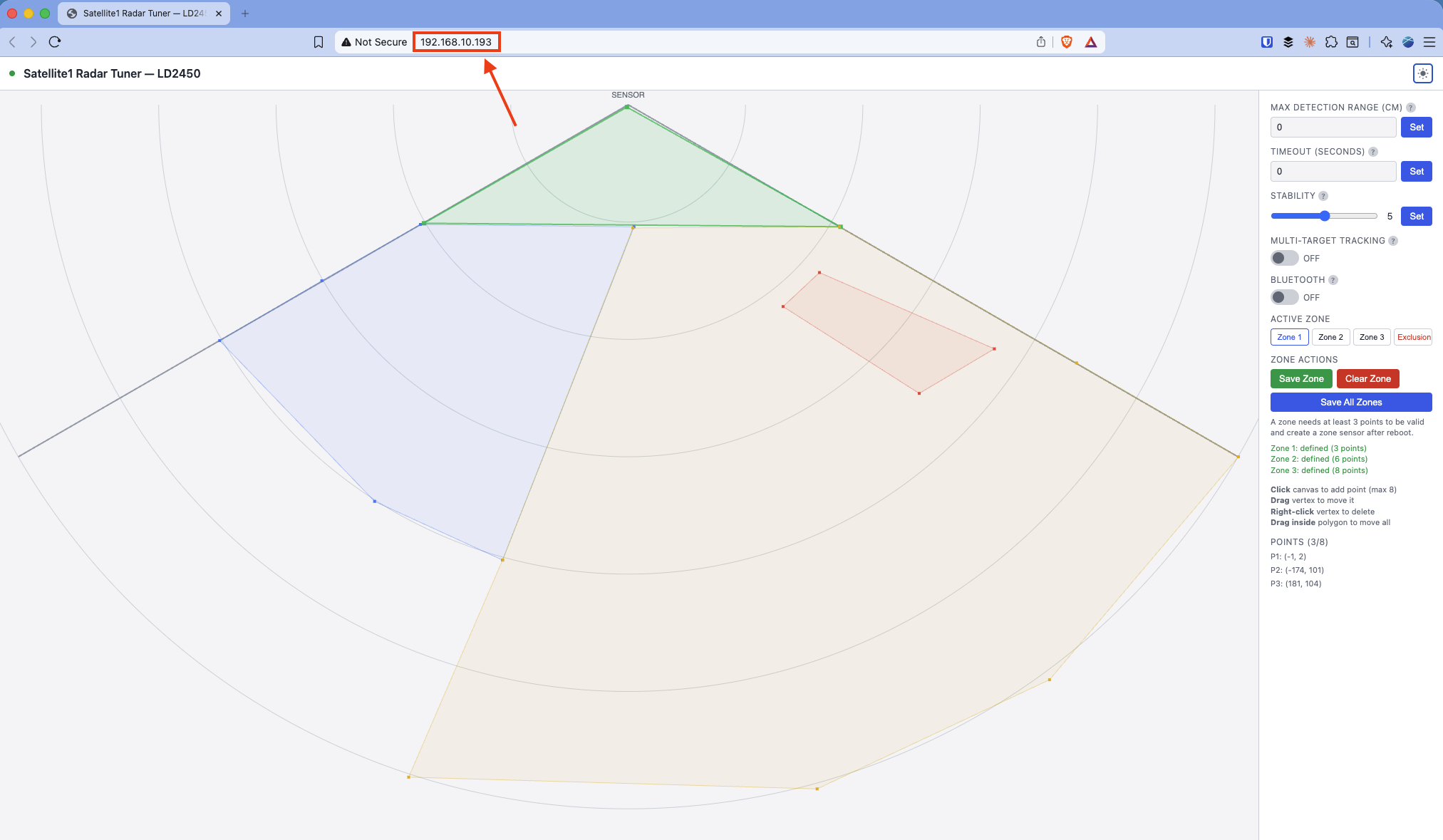
- Zone 1 / Zone 2 / Zone 3: Define areas where you want presence detection active. Left click to add points, right click to remove them. Click to move the shape around the screen.
- Exclusion Zone: Mark areas to ignore, such as a fan or a window with moving curtains.
- Adjust Max Detection Range, Timeout, Stability, and Multi-Target Tracking from the right-hand panel. Read the info popups.
- Click "Save Zone" after defining each zone, or "Save All Zones" to write the configuration to the sensor. This requires rebooting your Sat1.
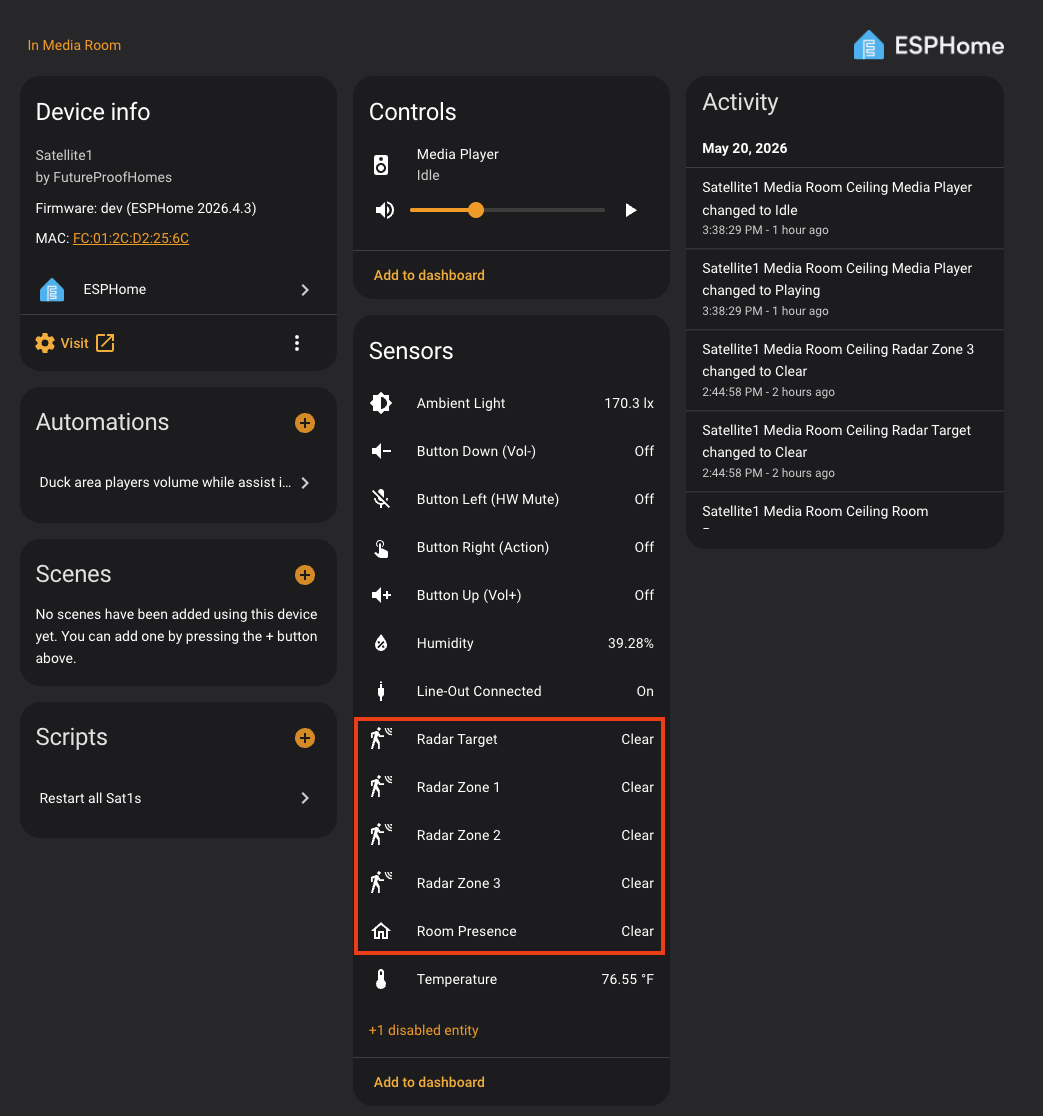
After tuning, the relevant presence sensors and states will appear in your Sat1's ESPHome Device UI, ready for use in Home Assistant automations.
Tuning LD2410 Gates
The LD2410 tuner provides a visual gate energy chart where you can see real-time moving and still energy levels for all 9 gates and adjust thresholds by dragging the dashed lines.
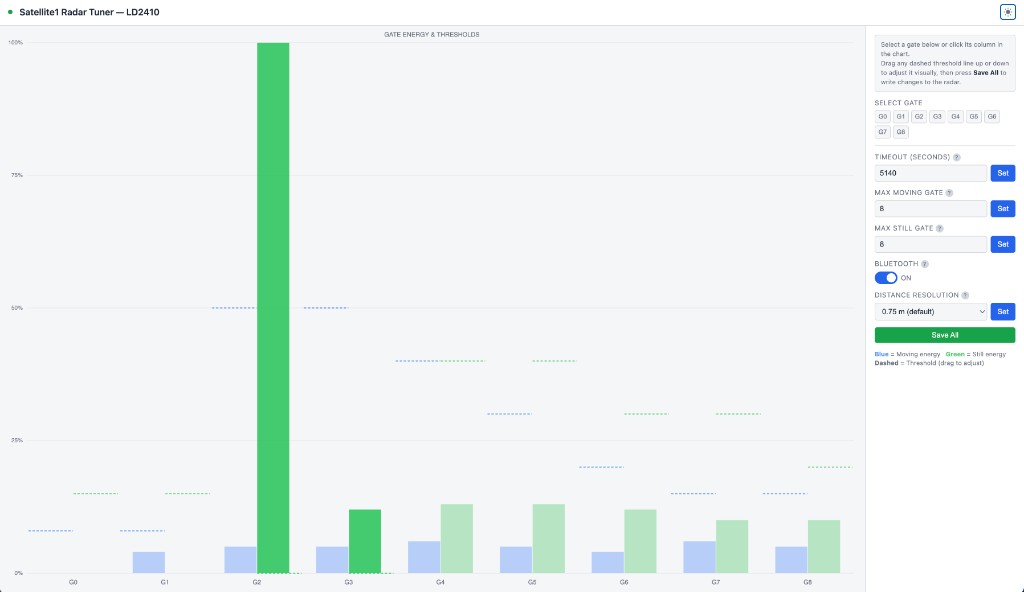
- Blue bars = Moving energy per gate. Green bars = Still energy per gate.
- Dashed lines = Thresholds (drag up or down to adjust).
- Set Max Moving Gate and Max Still Gate to restrict detection range.
- Adjust the Timeout and Distance Resolution as needed.
- Click "Save All" to write changes to the sensor.
After tuning, the relevant presence sensors and states will appear in your Sat1's ESPHome Device UI, ready for use in Home Assistant automations.
Updating mmWave Radar Sensor
Both the LD2410 and LD2450 can be updated over Bluetooth with the HLKRadarTool mobile app. Download the app, then watch the quick video below to learn how to access the sensor and change the firmware version.

