Satellite1 FAQs
Common questions and step-by-step fixes in one place.
Wake Words & Voice
What wake words are supported?
What wake words are supported?
The Satellite1 uses ESPHome's microWakeWord and supports "Hey Jarvis" and "Okay Nabu".
How do I add other wake words?
How do I add other wake words?
Modify and compile your own firmware to add compatible MicroWakeWords. We recommend TaterTotterson's collection.
How do I create my own wake word?
How do I create my own wake word?
You'll need a GPU, sample data, and some know-how. We recommend TaterTotterson's trainers: - microWakeWord-Trainer-Nvidia-Docker - microWakeWord-Trainer-AppleSilicon
Why isn't the wake word responding?
Why isn't the wake word responding?
- Try both "Okay Nabu" and "Hey Jarvis".
- Increase Wake Word Sensitivity in the Sat1 ESPHome device settings.
- Speak normally toward the microphones; don't shout.
- Keep microphones unobstructed. Avoid enclosed spots (e.g. inside a shelf) or very reflective rooms (e.g. marble floors).
- Detection can be harder for non-English accents or higher-pitched voices; consider training your own wake word (see above).
- Loud background noise (water, wind, TV, oven hoods) can interfere; XMOS firmware updates keep improving this.
- Still stuck? Try adding or training a custom wake word above.
Audio Out & Playback
Why don't I hear any audio?
Why don't I hear any audio?
Use the USB-C port on the HAT labeled "CORE/ESP". The port labeled "XMOS/SNDCARD" is for XMOS development only and does not drive the amplifier. Check the USB-C Power Draw sensor in the Sat1 ESPHome UI; we recommend 30W of power.
Why does my speaker sound distorted?
Why does my speaker sound distorted?
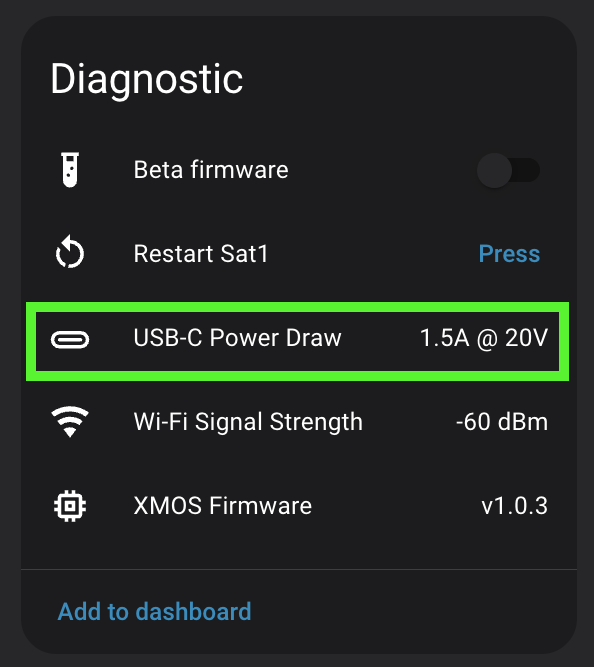
The Sat1 is likely underpowered. Check the USB-C Power Draw sensor in the Sat1 ESPHome UI; you should see about 30W.
Why is my speaker too quiet?
Why is my speaker too quiet?
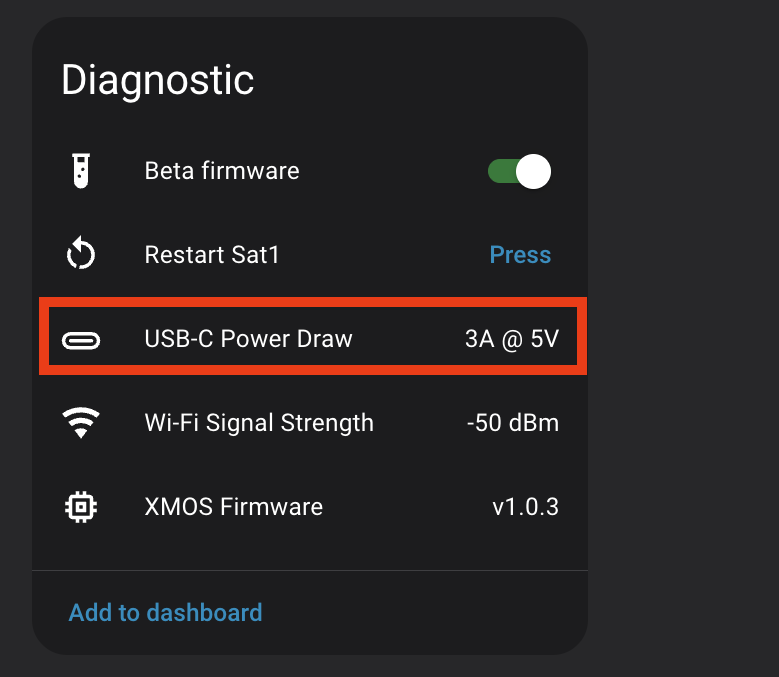
- We recommend 30W of power. Check the USB-C Power Draw sensor in the Sat1 ESPHome UI.
- In Music Assistant: open the Sat1 speaker's Player Settings, disable Enable volume normalization (EBU-R128 based) and Enable limiting to prevent clipping, then increase gain in Music Assistant's DSP. Details here.
Why is music or TTS stuttering?
Why is music or TTS stuttering?
- Make sure your Sat1 has a good WiFi connection.
- Try other TTS voices.
- Try streaming music from Music Assistant's media player section to rule out MA.
Audio In & Microphones
How do I inspect audio recordings?
How do I inspect audio recordings?
Store a copy of your audio recordings on the Home Assistant server for inspection:
- In Home Assistant, add to your
configuration.yaml:
- Open that path in Home Assistant (e.g. Studio Code Server) and listen to the files.
- Don't leave this on permanently; it will fill your server with recordings.
Sensors
Why is the temp or lux sensor incorrect?
Why is the temp or lux sensor incorrect?
The Sat1 is designed as a "Dev Kit" intended to run as a bare PCB on your electronics or hobby bench. We're now pushing that design further by using it in a fully enclosed smart speaker, where the sensor placement isn't ideal for accurate readings.
Ultimately, fully resolving this will require a hardware revision that moves the temperature, lux, and humidity sensors off the Hat board and into a more suitable location within the speaker. We've taken a similar approach with the external Wi-Fi antenna and mmWave sensor and will continue embracing modular, repairable hardware.
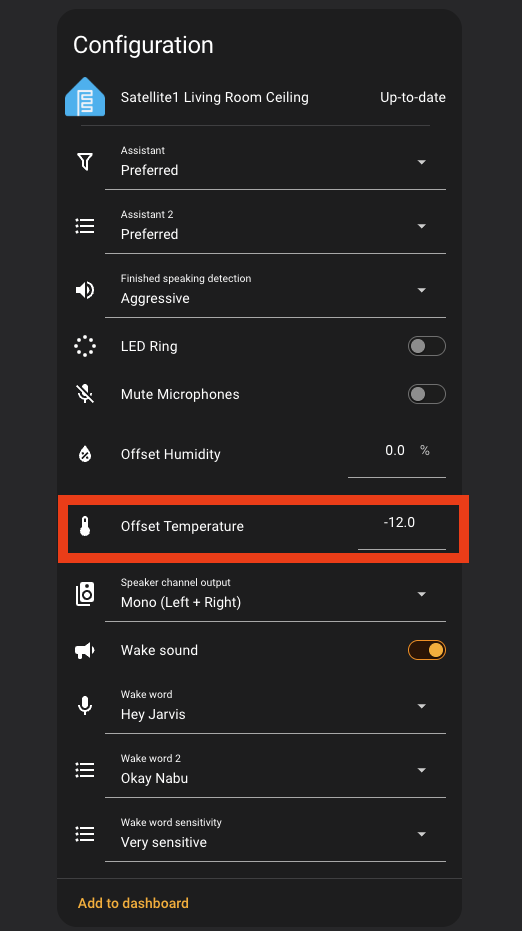
As a quick workaround, you can use the offset sensors in the firmware.
How do I setup mmWave human presence detection?
How do I setup mmWave human presence detection?
Satellite1 supports connecting a LD2450 or LD2410 presence sensor. Read more here.
Networking
How do I check WiFi connection?
How do I check WiFi connection?
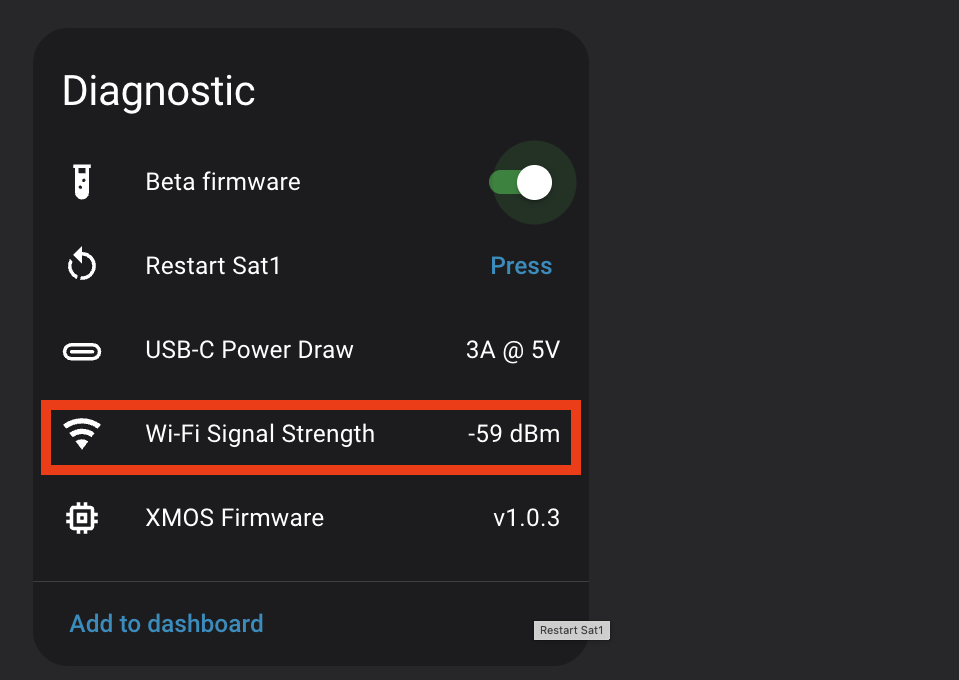
The Sat1 includes a Wi-Fi Signal Strength sensor that should read between -30 dBm and -75 dBm. If the reading is lower than -75 dBm, your Sat1 may underperform. Move closer to the access point or upgrade to a Core Board with an external antenna.
How do I switch to a new WiFi SSID or Password?
How do I switch to a new WiFi SSID or Password?
Wipe the Sat1 and flash fresh firmware. Or just wipe the credentials from the device.
LED Color Codes
Why do my LEDs flash red after giving command?
Why do my LEDs flash red after giving command?
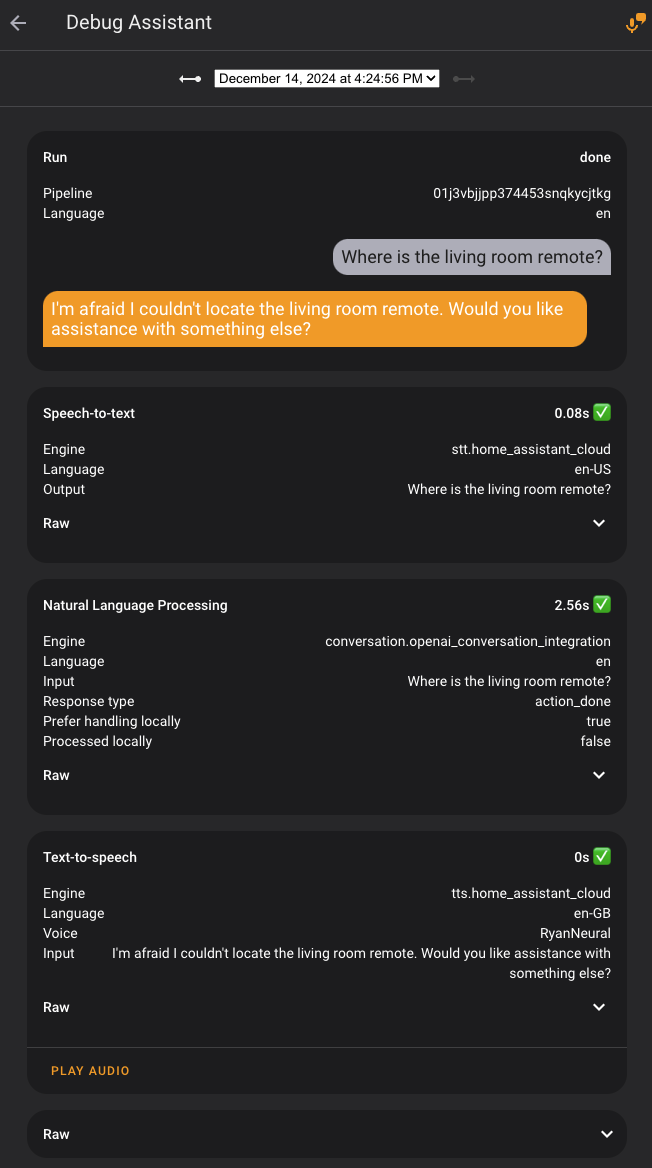
Something is wrong with your voice pipeline in HA. Debug your voice pipeline..
Why are my LEDs twinkling red?
Why are my LEDs twinkling red?
Your Sat1 cannot connect to your Home Assistant/ESPHome. Typically a networking issue. Check your WiFi connection.
What do all the LED color codes mean?
What do all the LED color codes mean?
We follow the same patterns as Nabu Casa. Read more here.
Logs & Debugging
How do I view Sat1 logs?
How do I view Sat1 logs?
- Connect the Sat1 to your computer with a USB-C cable.
- Click the connect button below and select the correct JTAG device.
- Choose Logs & Console.
How do I debug the voice pipeline?
How do I debug the voice pipeline?
In Home Assistant: Settings → Voice Assistants, click the 3-dot menu next to that pipeline. Learn more here..
Factory Settings & Flashing Releases
How do I completely remove the Sat1 from Home Assistant & ESPHome?
How do I completely remove the Sat1 from Home Assistant & ESPHome?
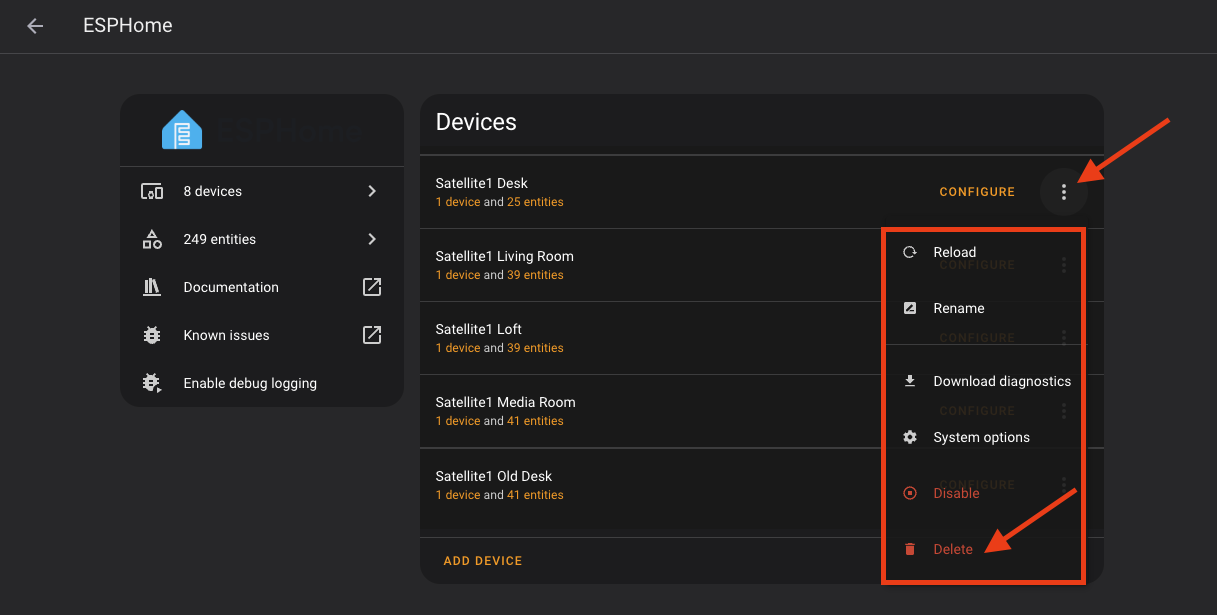
- In Home Assistant: Settings → Devices and Services → ESPHome → 3 dots next to the Satellite1 → Delete.
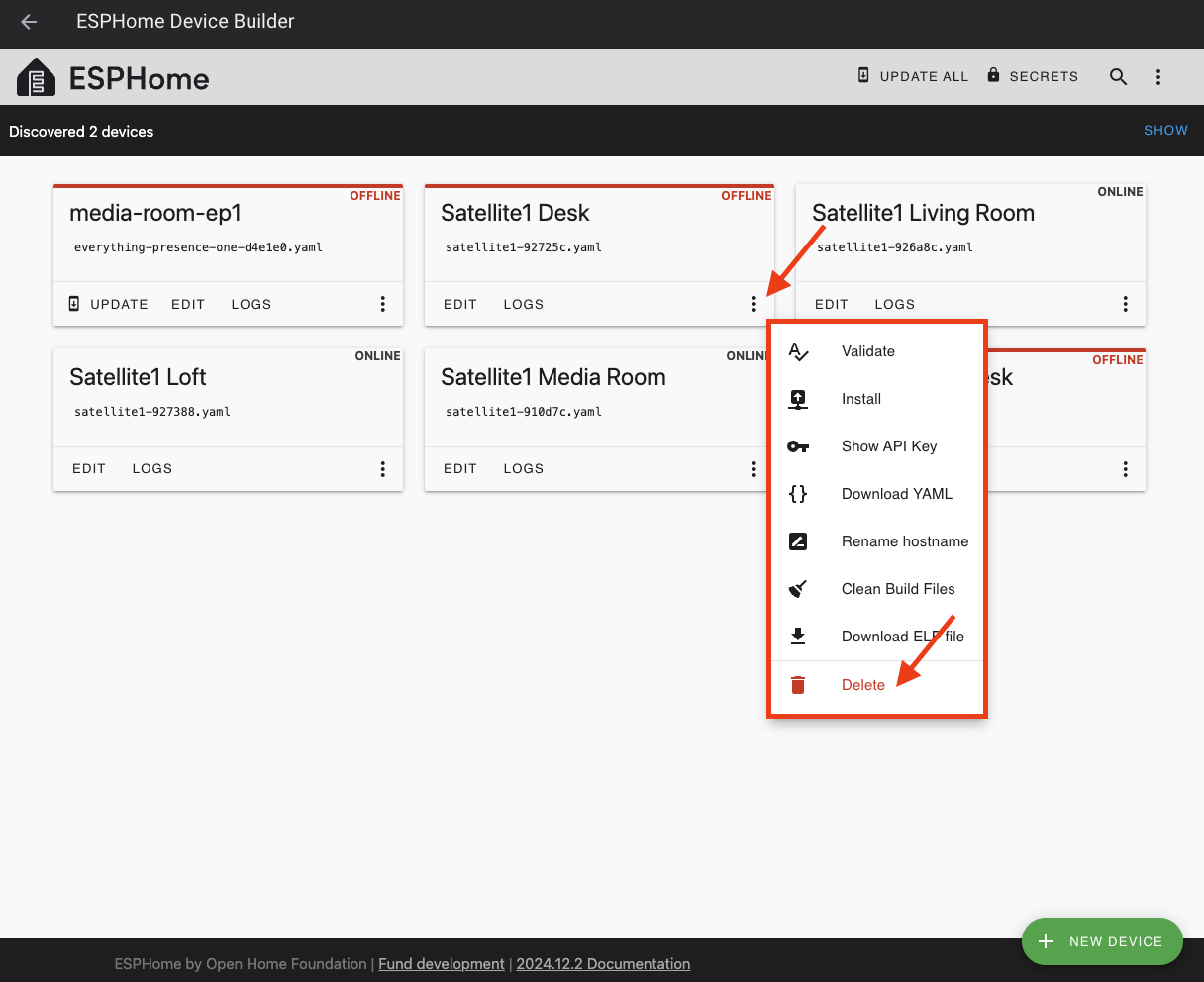
- If you "Took Control" in ESPHome Device Builder: Settings → Add-Ons → ESPHome Device Builder → Open Web UI → 3 dots next to the Satellite1 → Delete.
How do I flash back to factory settings?
How do I flash back to factory settings?
Connect your Sat1 to your computer and use our web flashing tool to flash the device back to factory firmware
How do I clear WiFi and restart BLE Improv?
How do I clear WiFi and restart BLE Improv?
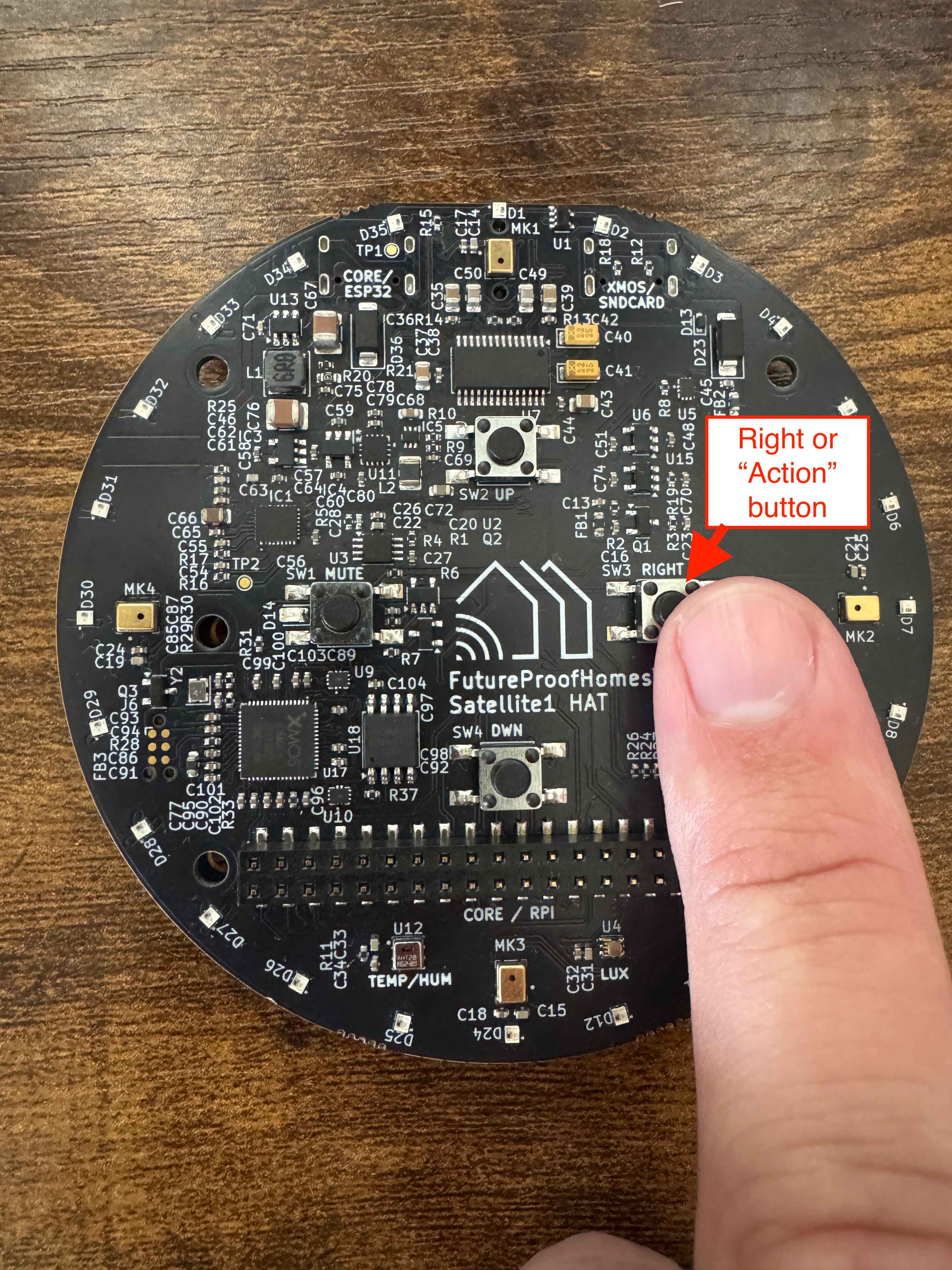
- Press and hold the RIGHT (Action) button for about 22 seconds until the red LEDs complete a clockwise circle. When the LEDs turn blue, release the button and wait while the XMOS chip is erased (may take a few minutes). The Satellite1 will reboot to factory firmware; blue LEDs will complete another clockwise circle as the XMOS is flashed.
- Add your Satellite1 to Home Assistant.
What if flashing is failing or Sat1 is blinking on and off?
What if flashing is failing or Sat1 is blinking on and off?
- Unplug the Sat1 from power.
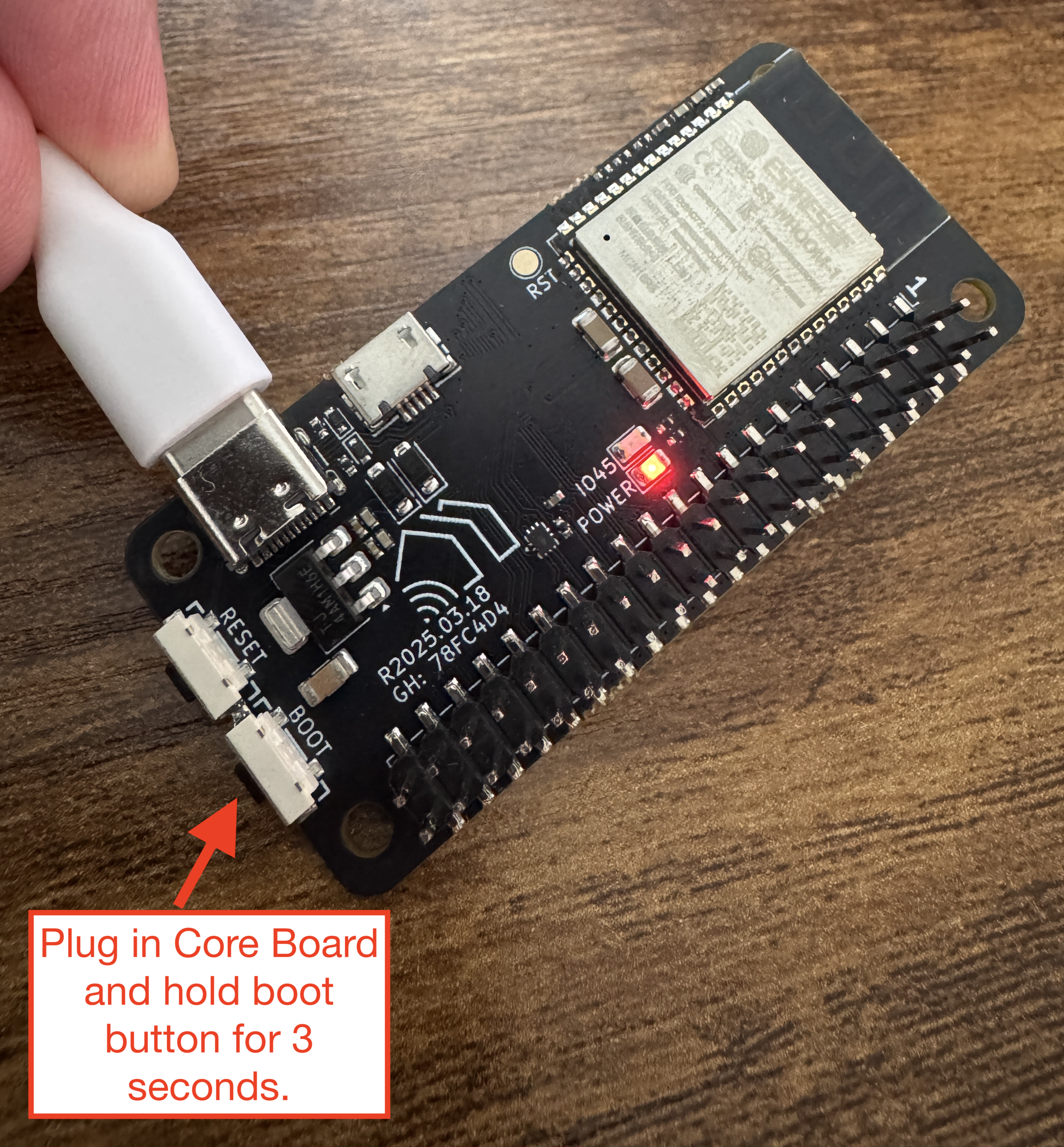
- Remove the Core from the Hat board: Hold the Boot button on the Core, then plug power into the USB-C port. Release Boot button after 3 seconds. Now try to flash the Sat1 via USB-C. Unplug and mount the Hat back to the Core board.
- If you really don't want to remove the Core board: Hold the Right/Action button on the HAT, then plug power into the HAT's "ESP32/CORE" USB-C port. Release the Action button after 3 seconds. Try to flash the Sat1 via USB-C.
How do I update my Sat1?
How do I update my Sat1?
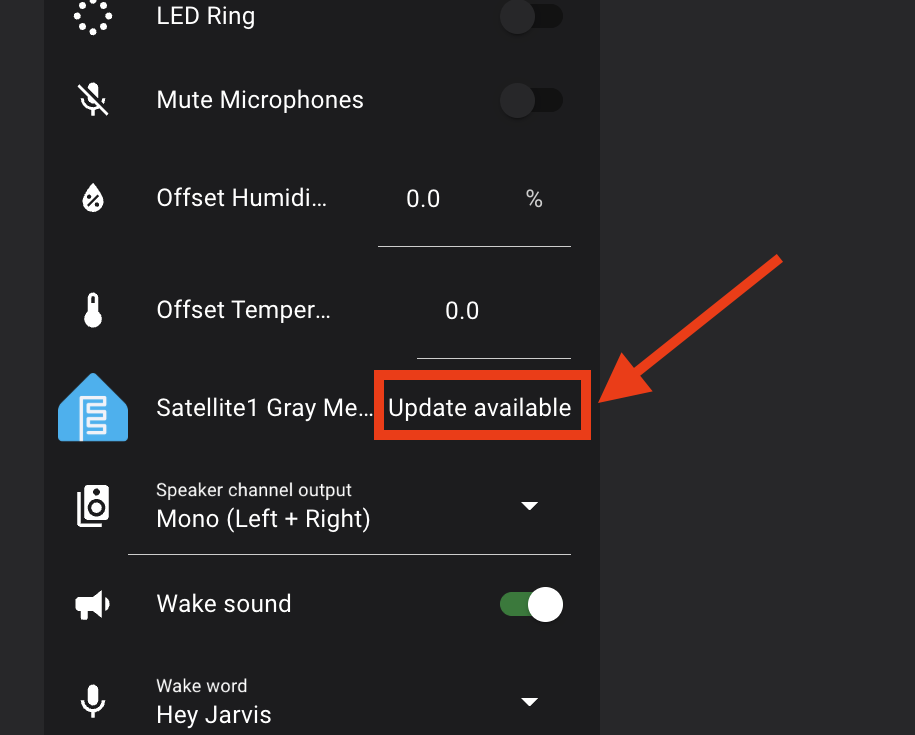
- Updates are delivered over the air. Simply click the "Update Available" button. If you don't see an expected update, please restart your Sat1 and toggle the "Beta Firmware" switch.
- You can also update from our Web Flasher Tool
Need More Help?
While we hope this documentation will answer all your questions, we realize support is sometimes needed. The FutureProofHomes team will do their best to keep up with support requests, but we also lean on our community to help all of us. See the links below and decide which method of support is best for your needs.
Have a general question and need quick help from the community?
Do you have a feature request or reproducible bug?
Look through our existing tickets first, then open a new request if necessary:
Request a feature on GitHub
Report a bug
Hardware issue or need direct support?